Overview:
By default, SherpaDesk allows open access for users to create tickets. If you want to limit this access to only users with approved email domains, you can do so by updating specific settings. This helps ensure that only authorized users can submit tickets to your instance.
Steps:
Restrict via Email Parser
1. Log in to Sherpadesk with valid credentials.
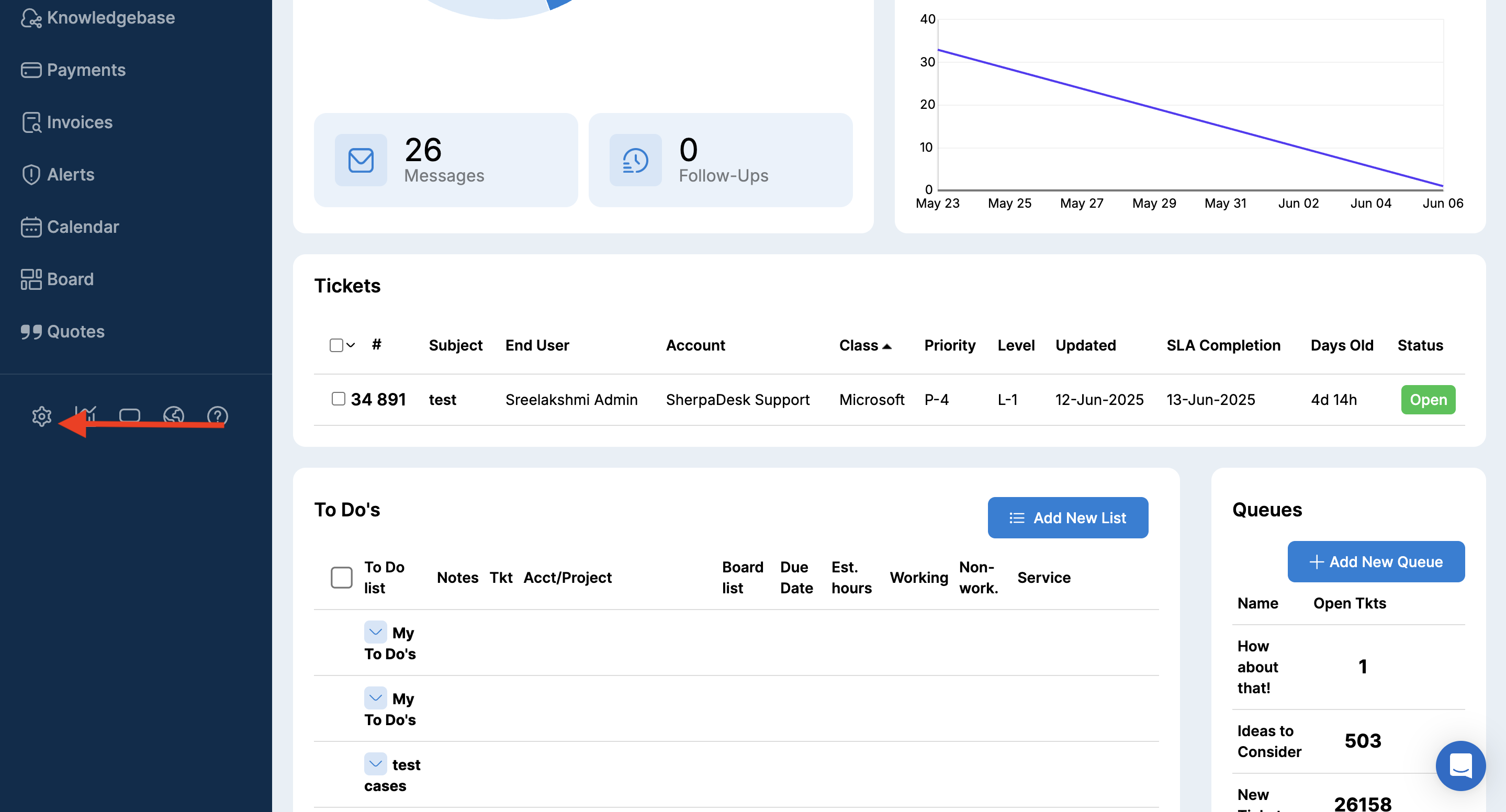
2. Click on “Settings” in the horizontal menu.
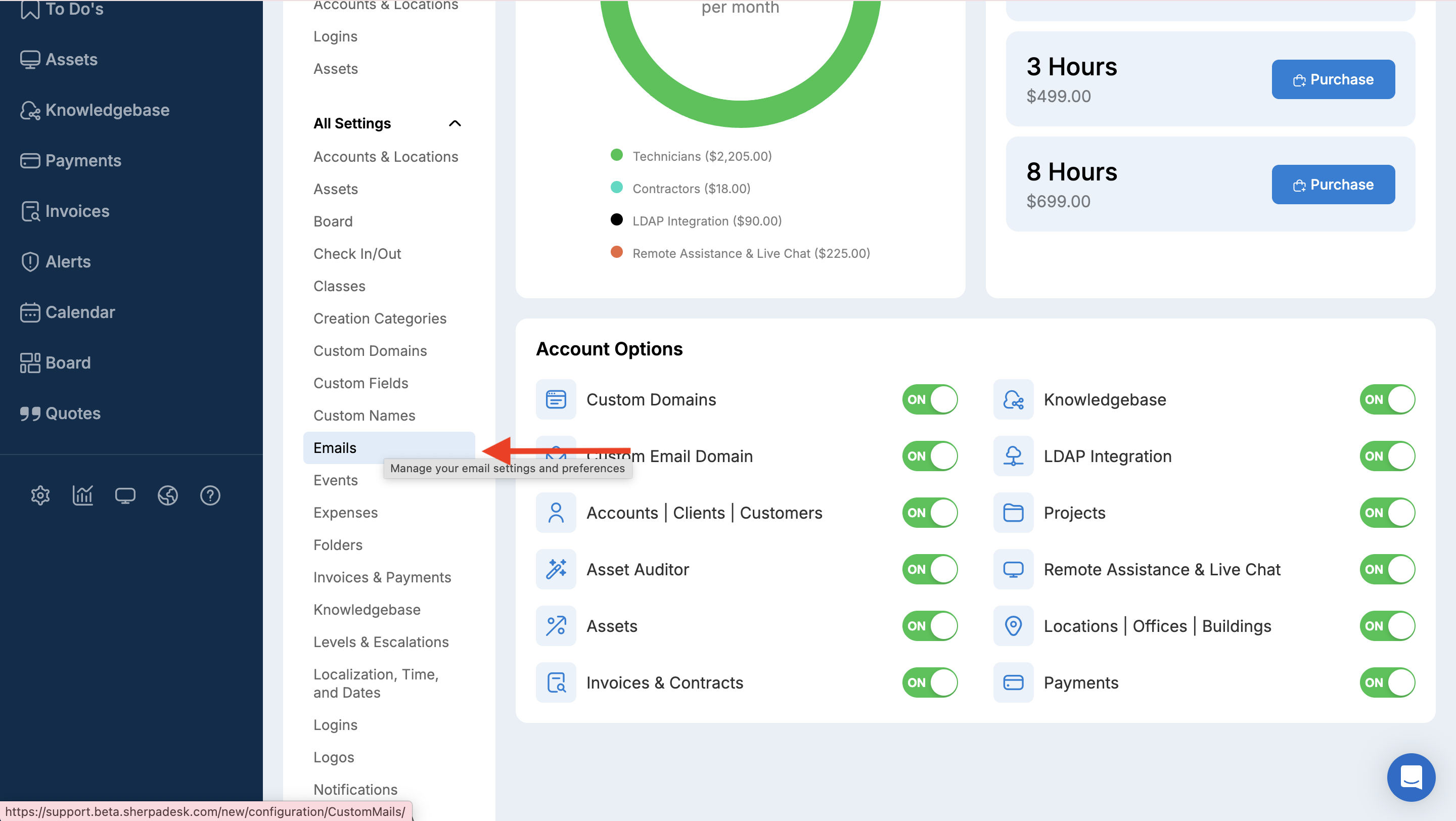
3. Click on "Emails " on the configurations page.
4. Disable the "Allow New User Creation via Email Parser" checkbox.
5. Enable the "Limit New Users to Only Matching Email Suffixes" checkbox.
6. Enter the suffix in the "Email Suffixes" field.
7. Click on the "Apply" button to save changes.
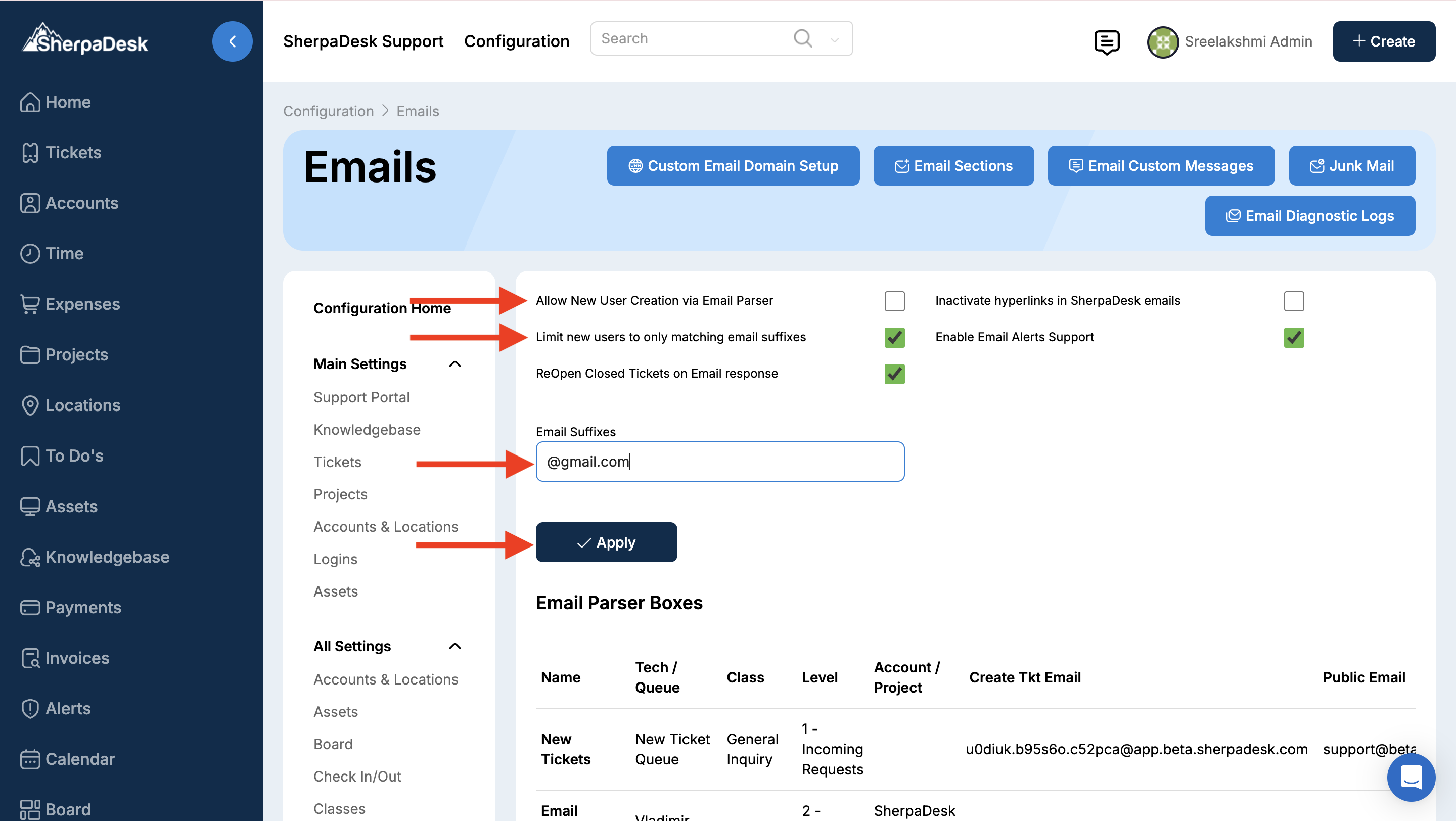
The system will only create new user accounts if the email domain matches the domain set for an account.
Restrict via Portal
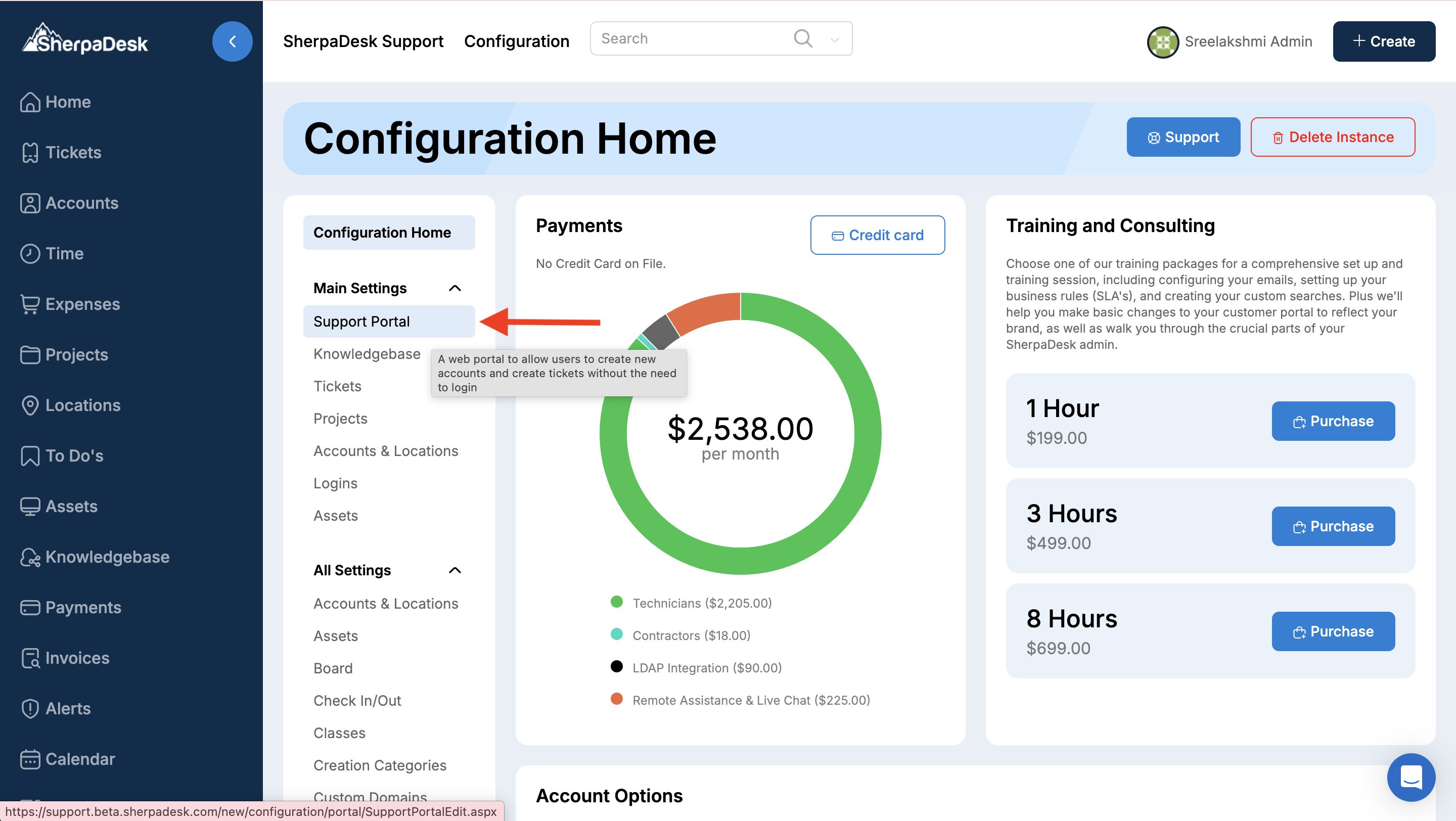
1. Click on "Support Portal" on the configurations page.
2. Enable the "Limit New Users to Known Email Suffixes" checkbox.
3. Click on the "Apply" button.
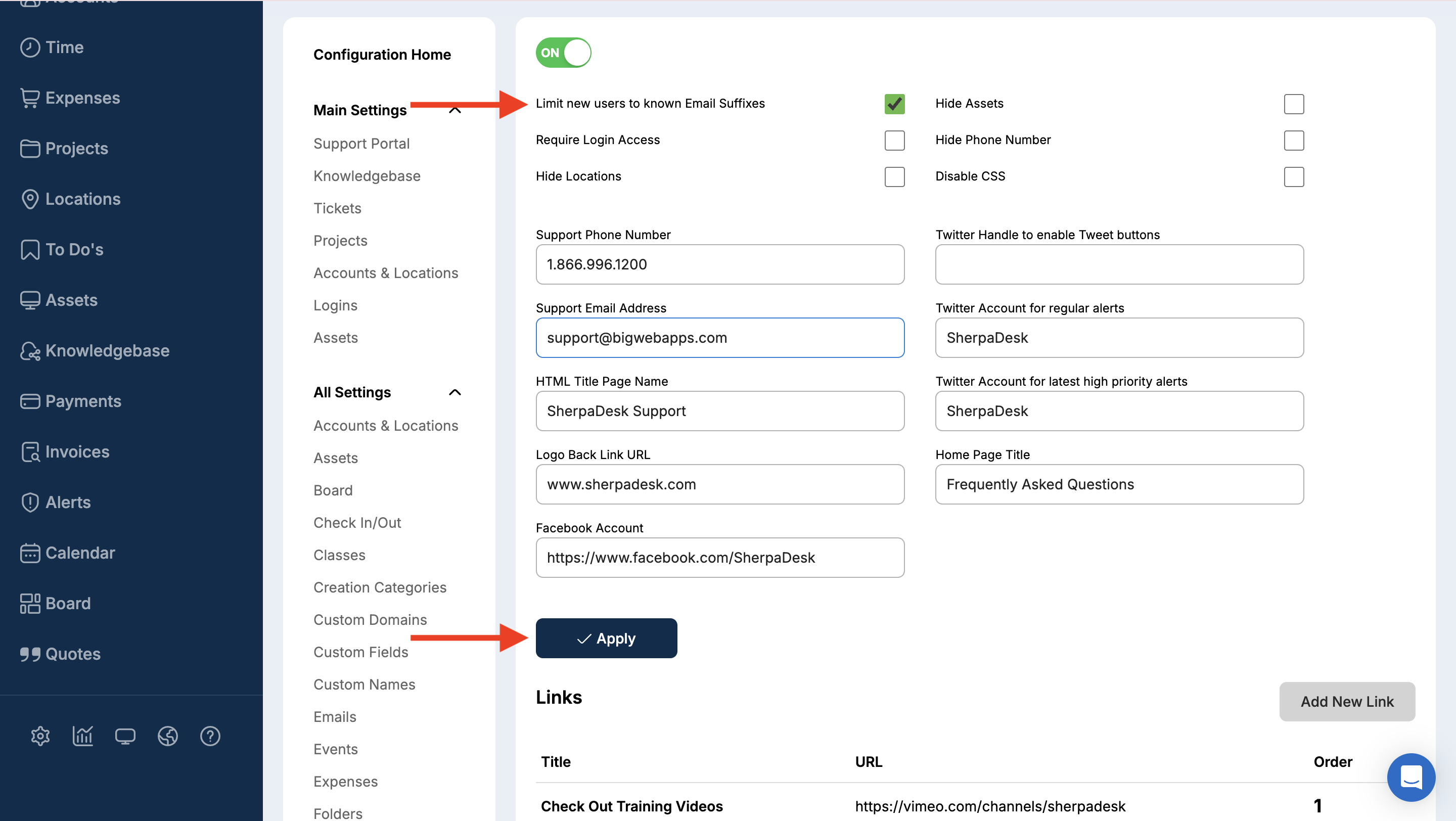
Users with known email suffixes are only allowed to log in to the support portal.
Restrict New User Creation via User Wizard
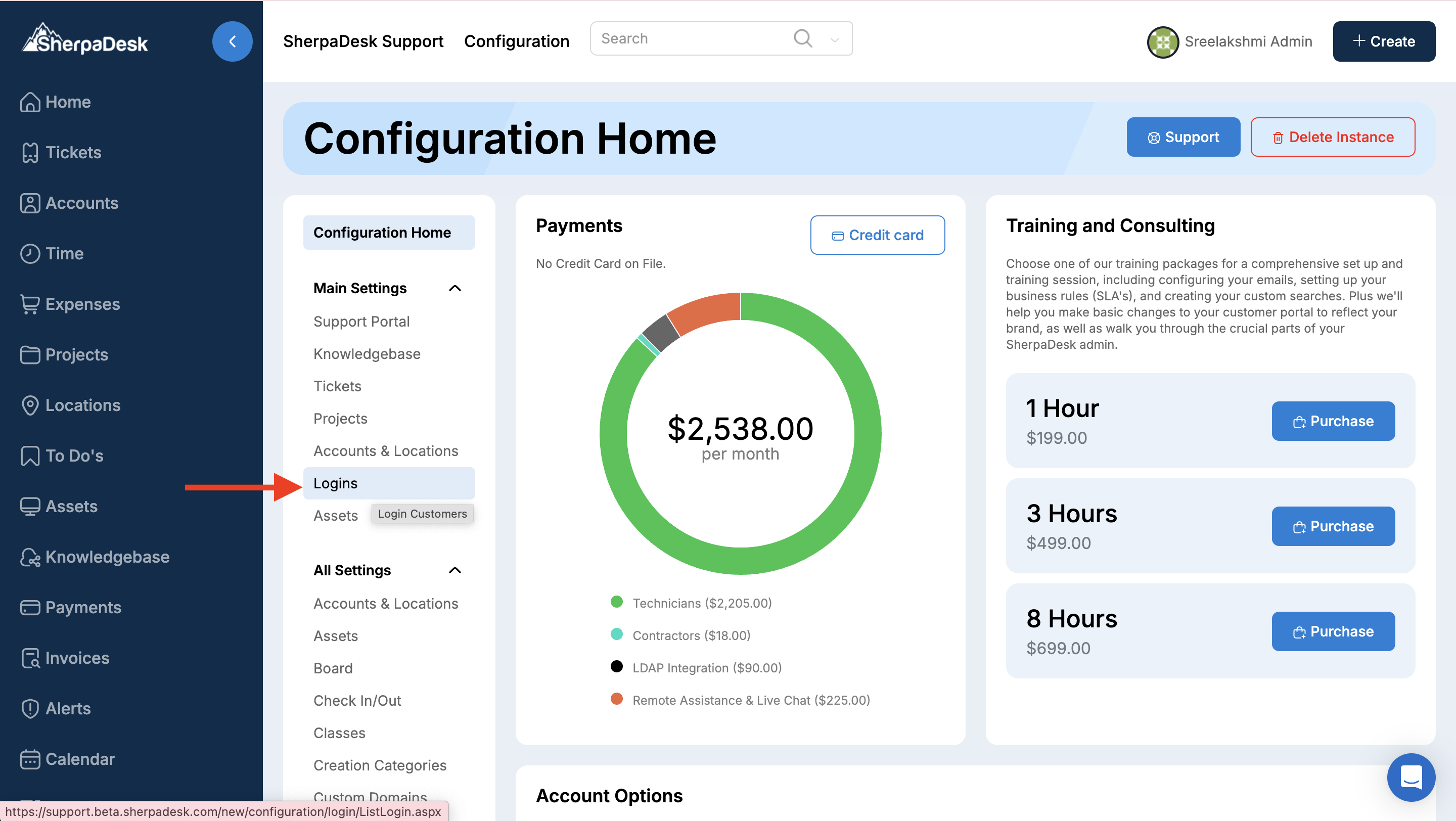
1. Click on "Logins" on the configurations page.
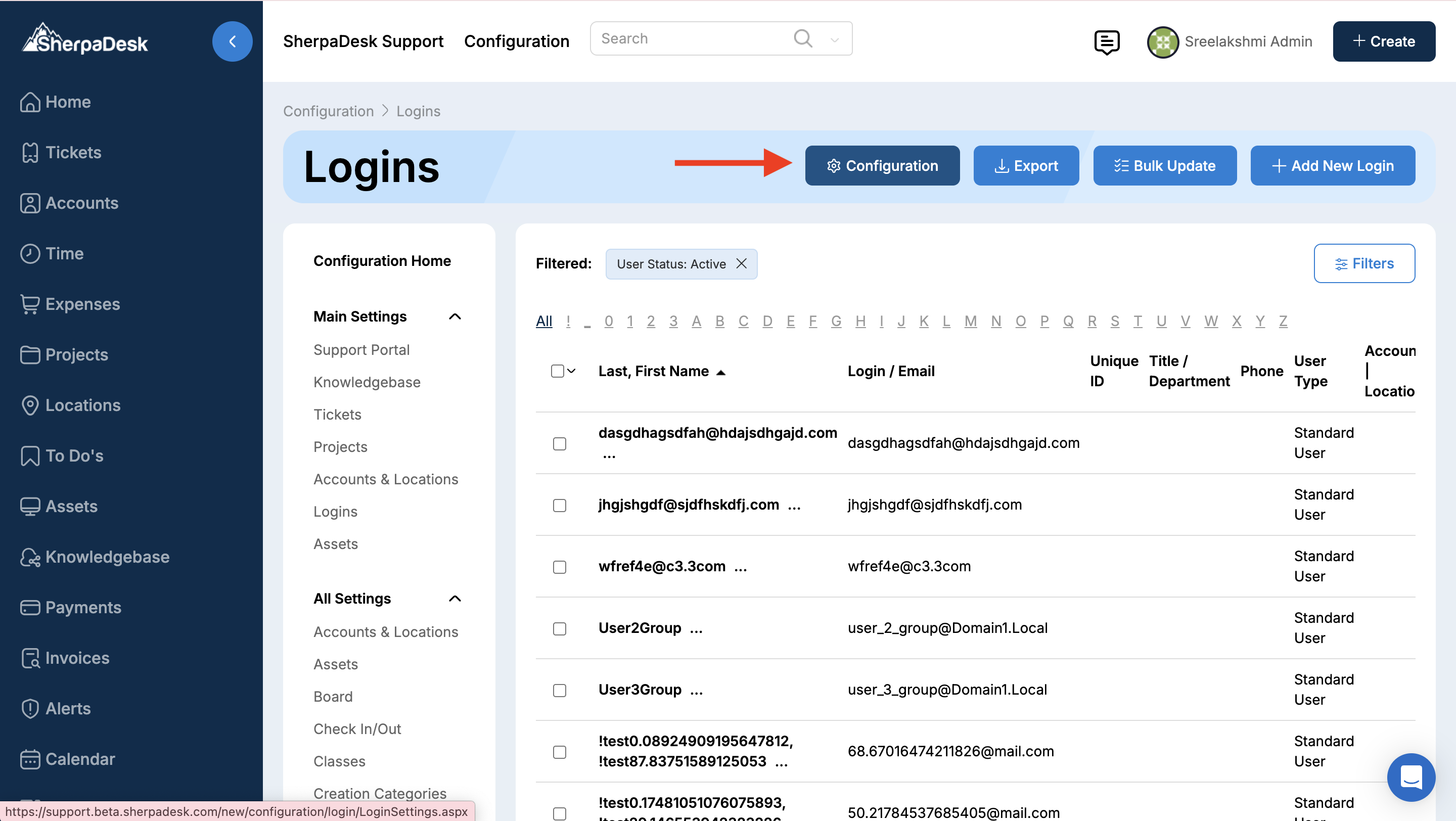
2. Click on the "Configuration" button.
3. Disable the "New User Wizard" checkbox.
4. Click on the "Apply" button.
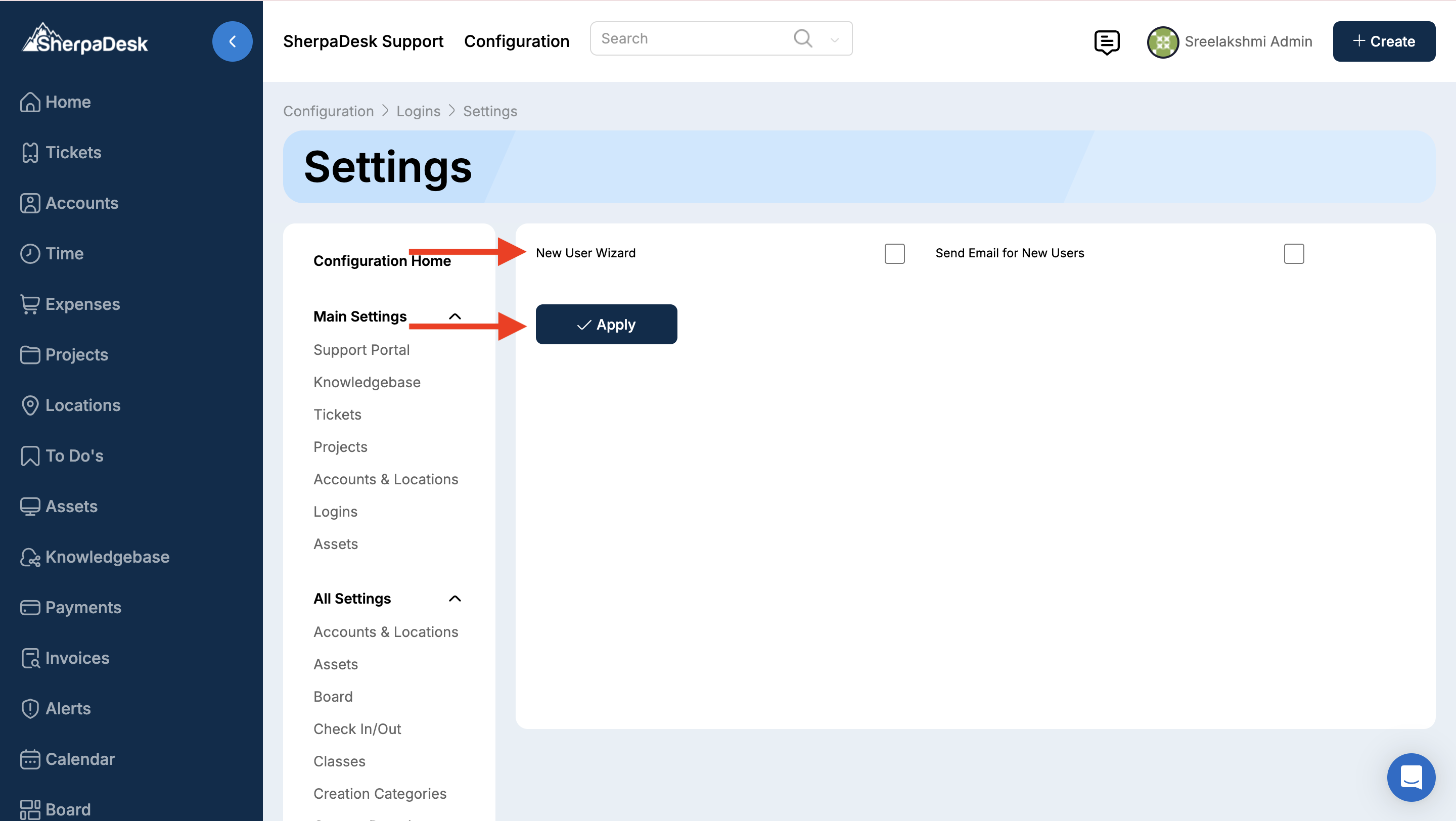
New user creation on the login page is restricted.
